
The "Legacy JavaScript" Lighthouse audit checks if your website is serving legacy JavaScript to modern browsers. Serving modern JavaScript instead can help your website load faster.
What are modern and legacy JavaScript?
The JavaScript programming language has evolved over time, adding new modern features. However, it takes time for browsers to start supporting these new features, and for your visitors to upgrade their browsers.
That's why many websites use polyfills or code transforms so that developers can write modern code while still ensuring the website works in visitors' browsers. For example, Babel is a popular code transformation tool that lets developers quickly adopt new JavaScript language features.
However, as browser support improves, you might start sending legacy JavaScript to modern browsers that don't need it. This can impact performance on your website.
What are the downsides of serving legacy JavaScript?
Unnecessary polyfills and code transformations mean more JavaScript code on your website. That means:
- More bytes for your users to download
- More JavaScript to parse and execute
- More potential for bugs and compatibility issues
When you run Lighthouse, whether that's through Chrome DevTools, the Lighthouse CLI, a CI/CD pipeline, or a monitoring tool like DebugBear, you'll see a warning if your website is serving legacy JavaScript to modern browsers.

This is how Lighthouse explains the problem:
Polyfills and transforms enable older browsers to use new JavaScript features. However, many aren't necessary for modern browsers. Consider modifying your JavaScript build process to not transpile Baseline features, unless you know you must support older browsers.
Baseline refers to a set of browser features that have had cross-browser support for at least 30 months.
How is "Avoid serving legacy JavaScript to modern browsers" calculated?
The audit scans your JavaScript files looking for two things: polyfills and transforms.
- Polyfills are pieces of code that add missing features to older browsers.
- Transforms are changes made to modern JavaScript to make it work in older browsers.
When Lighthouse finds these, it calculates how many bytes they add to your website.
For polyfills, it uses a database of known polyfill sizes. For transforms, it counts patterns that appear when modern JavaScript classes are converted to work in older browsers. The audit then shows you how much data you could save by removing this legacy code. Modern browsers already support these features natively, so including this code is unnecessary.
How to fix the "Legacy JavaScript" audit
Use this JavaScript loading technique to serve the right code to each browser:
-
Use modern build tools - Tools like Webpack, Rollup, or Vite can create separate bundles: one for modern browsers and one for legacy browsers.
-
Use the
module/nomodulepattern:<!-- Modern browsers -->
<script type="module" src="modern.js"></script>
<!-- Legacy browsers -->
<script nomodule src="legacy.js"></script>This pattern allows modern browsers to load the
modern.jsfile, while legacy browsers will load thelegacy.jsfile.
How to check if you are serving legacy JavaScript
The Lighthouse audit will show you if you are serving legacy JavaScript, but you can also check manually.
-
Run Lighthouse - Use Chrome DevTools (Lighthouse tab) or run a free website speed test in DebugBear to see if you have the legacy JavaScript warning.
-
Analyze your bundle - Use tools to examine your JavaScript, for example, Webpack Bundle Analyzer.
-
Check your build configuration - Review your webpack or babel configs for unnecessary polyfills.
Go ahead and sign up for a free DebugBear trial. You'll be able to run Lighthouse audits continuously and get alerts when your website performance changes.
Get more tips to improve your page speed
DebugBear is a web performance testing and monitoring tool that gives you detailed insights into your page speed. Find out if JavaScript load time is the best place to optimize, or if you need to speed up images or reduce render-blocking resources.
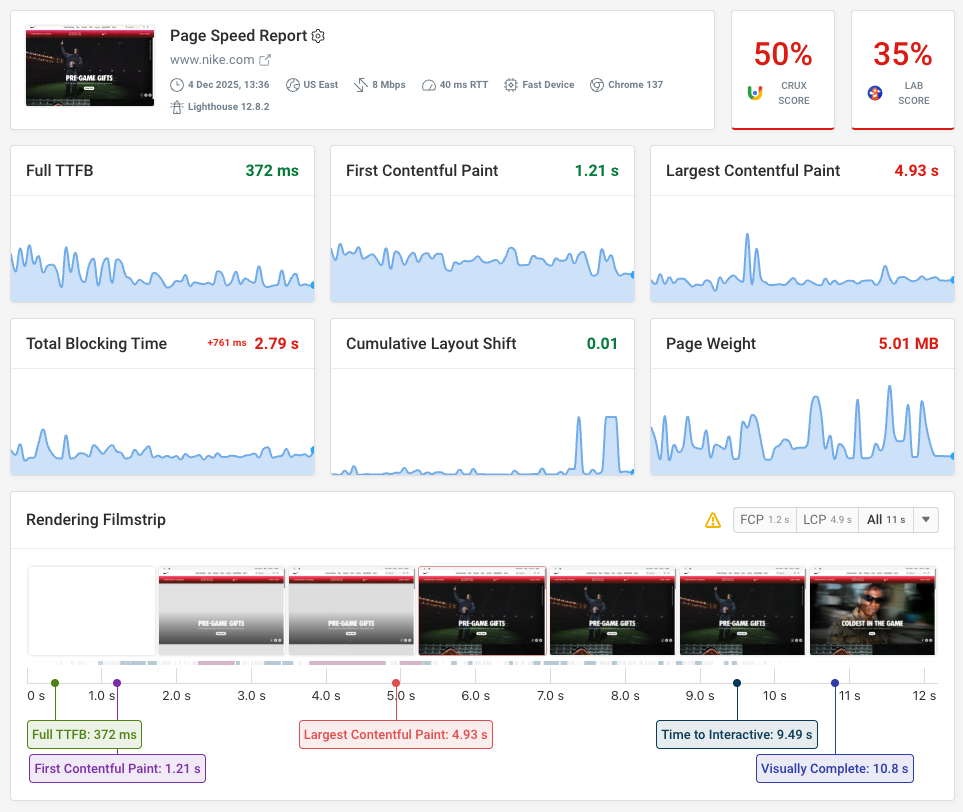
You can identify specific JavaScript code that's necessary to render content on your website, and track page weight for JavaScript and other resource types over time.
When your JavaScript bundle size goes up you'll be notified. DebugBear then lets you compare the before and after test results to identify new files or see what specific bundle file has increased in size.
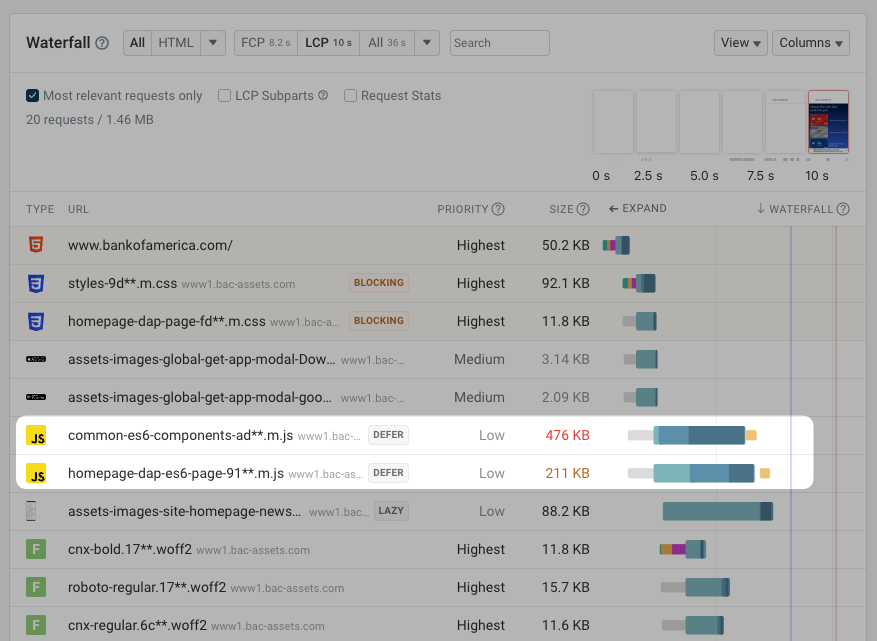
You can also use real user monitoring to track how fast your website is for visitors coming to your website.
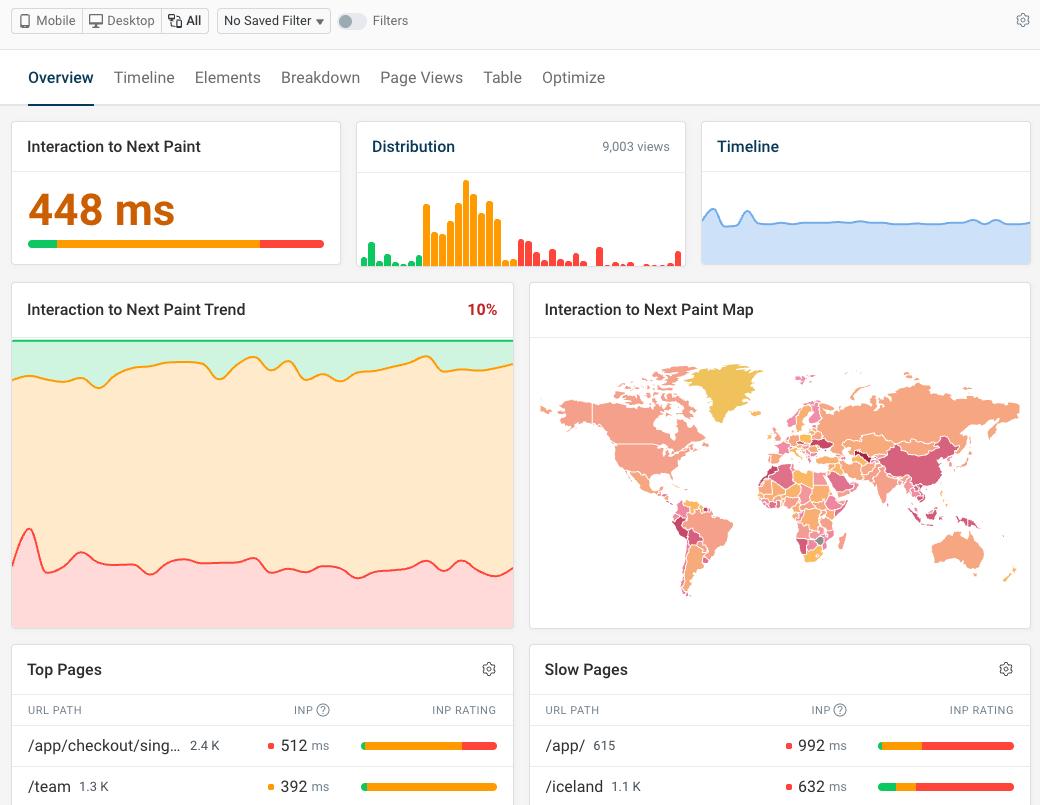
Improve Interaction to Next Paint by detecting specific elements that have slow interactions and to see specific scripts that are slowing them down.
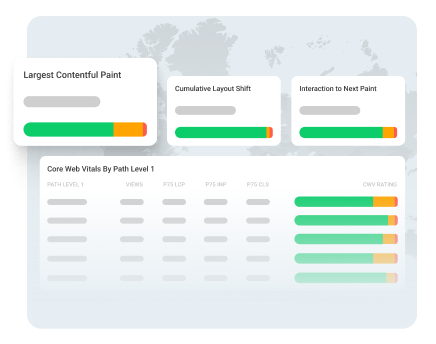
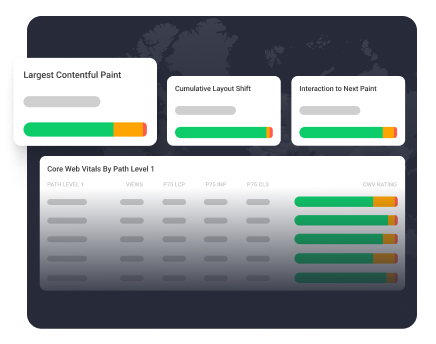
Monitor Page Speed & Core Web Vitals
DebugBear monitoring includes:
- In-depth Page Speed Reports
- Automated Recommendations
- Real User Analytics Data